
Key steps and recommendations
Web hosting companies around the world are seeing a radical increase in the number of WordPress brute-force login attempts.
My goal in writing this article is to provide tips on how to secure your website against brute-force attacks.
A note on age: I first wrote this article years ago. The attacks are still with us and the tips below still apply, but some of the plugins I originally listed have since been closed, so I have updated that list and the code examples.
Your neighbor may be attempting to hack your website at this very moment!

The days of mass denial of service attacks originating from Asia or Europe seem to have been overshadowed by PC hacks originating in the good ol' US of A. By some accounts, over 100,000 unique IP addresses were involved in the April 2013 attack, a good majority of which appeared to be originating through compromised PC's in North America.
Five tips to block brute force attacks (from easiest to maybe a bit paranoid)
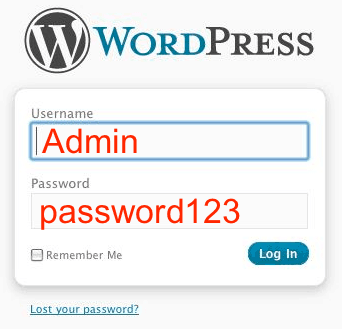
1. Why give bots a username to chew on?
Delete the "admin" and "administrator" usernames from your WordPress installations.
2. Plugins are a man's best friend.
Plugins like these are well regarded options (several I used to list here have since been closed on WordPress.org or folded into other products):
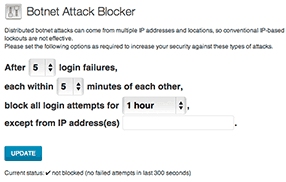
Wordfence or Solid Security (formerly iThemes Security). Some setup required. Proactive security is key!
Jetpack's brute-force protection. Automattic acquired the crowd-sourced BruteProtect plugin in 2014 and built its protection into Jetpack; the old standalone BruteProtect plugin is no longer supported. Because the protection is crowd sourced, if the IP addresses hitting your site are not in its database yet, it may not have an immediate effect in blocking bad connections.
3. Forget what every security expert has told you about passwords and retrain your brain to use pass-phrases instead. Decide on three or four words, like, sitedomain.password.yourkeyphrase. Less memorization on my part, and no bot is going to figure out my 30 character password, unless I remove my tin foil cap. They can bite my shiny metal... Even better, turn on two-factor authentication for every administrator account.
4a. Disable "post" access to wp-login.php by adding this text to the top of your .htaccess file:
<IfModule mod_rewrite.c>
RewriteEngine On
RewriteCond %{REQUEST_METHOD} POST
RewriteCond %{HTTP_REFERER} !^https?://(.*\.)?yourdomain\.com [NC]
RewriteCond %{REQUEST_URI} ^(.*)?wp-login\.php(.*)$ [OR]
RewriteCond %{REQUEST_URI} ^(.*)?wp-admin$
RewriteRule ^(.*)$ - [F]
</IfModule>
Replace yourdomain\.com with your own domain name, and save. Be careful to leave the backslash in place before the dot. The https? makes the rule work for both http and https sites. This text simply prevents bots from "posting" against the default WordPress login script. Test it right away: log out, log back in from a second browser window, and if you see a 403 error, remove these lines.*
*Rumor has it that while this post blocking will stop most WordPress brute force attacks instantly, you cannot use this on a website which requires registration confirmation via a link back to your blog.
4b. If that is not enough, put a firewall or a login-protection plugin that limits failed login attempts in front of your login page. I no longer recommend renaming wp-login.php or editing WordPress core files such as /wp-includes/general-template.php: those changes are overwritten by the next WordPress update, and a typo can lock you out of your own site.
5. How do I restrict access to my WordPress login page?
If you are the only administrator and your IP address rarely or never changes, then try restricting access to your login page solely to you. Add this to the top of your .htaccess file:
RewriteEngine On
RewriteCond %{REQUEST_URI} ^(.*)?wp-login\.php(.*)$ [OR]
RewriteCond %{REQUEST_URI} ^(.*)?wp-admin$
RewriteCond %{REMOTE_ADDR} !^0\.0\.0\.0$
RewriteRule ^(.*)$ - [R=403,L]
Configuration:
Just replace 0.0.0.0 with your IP address (careful to leave the backslash before each dot in place, for example 203\.0\.113\.5).
Hint: Google "what is my IP" to get your IP address.
Likewise, duplicate the REMOTE_ADDR line with other IP's you wish to give access too.
Or leave at 0.0.0.0 to fully block access to everyone, including that army of evil bots who may be attempting to break down your front door at this very moment.
And Voilà! Bots go Bye Bye!
6. How do I block a range of IP addresses?
Sadly, there may come a time when you simply need to block one or a range of IP addresses. The solution is simple enough. Just add this to the top of your .htaccess file:
# Block Mass IP Connections
<RequireAll>
Require all granted
Require not ip 203.0.113.5
Require not ip 198.51.100
</RequireAll>
Configuration:
Replace the example addresses with the offending IP address. This is the syntax for Apache 2.4. Servers still running the older Apache 2.2 use the Order allow,deny and deny from lines instead; ask your host if you are not sure which version you have.
To block a whole range of addresses, such as every address from 198.51.100.0 through 198.51.100.255, drop the last number and keep the first three (198.51.100), or use the CIDR form 198.51.100.0/24.
And Enjoy!
I've posted a few basic article links below. Likewise, if you have questions just pick up the phone and call anytime, Jim Walker, The Hack Repair Guy, (619) 479-6637
How to Block Bots from Seeing your Website, Bad Bots and Drive-by Hacks Explained
xmlrpc.php and Pingbacks and Denial of Service Attacks, Oh My!
WordPress Security Plugins Revealed
Frequently asked questions
What is the fastest way to fix or prevent this issue on my WordPress site?
Can HackGuard.com handle security & malware for my WordPress site?