
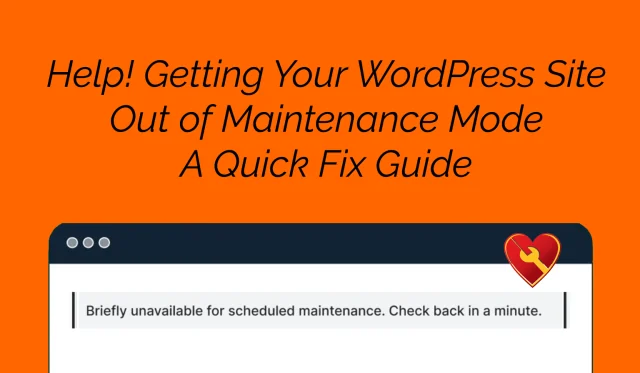
It happens to plenty of WordPress site owners: an update gets interrupted and the site is stuck in maintenance mode, leaving visitors locked out and admins stressed.
This quick rescue guide explains why your site says "Briefly unavailable for scheduled maintenance", how to safely remove the stuck .maintenance file, and how to prevent this problem next time. Whether you run a small blog or a busy e-commerce site, this fix takes under 5 minutes.
Quick Fix Checklist: Is Your Site Really Stuck?
Does your homepage show "Briefly unavailable for scheduled maintenance"?
Did you recently run updates for WordPress core, plugins, or themes?
Have you tried refreshing after waiting 2 to 5 minutes?
If yes, your site's .maintenance file likely didn't clear, here's how to fix it.
Step-by-Step: Remove the .maintenance File
What's Happening?
During updates, WordPress drops a temporary .maintenance file in your site's root directory. If the update is interrupted, the file sticks around, locking your site.
Method 1: Fix with FTP
Skill Level: Beginner
Time Required: ~5 minutes
Tools Needed: FTP client (FileZilla, Cyberduck)
Open your FTP client and connect to your site.
Navigate to your site's root directory (e.g., /public_html/).
Find the file named .maintenance.
Delete .maintenance.
Refresh your site, it should be back online!
Verify: Visit your site in an incognito window to confirm the fix.
Method 2: Fix with File Manager
Skill Level: Beginner
Time Required: ~5 minutes
Tools Needed: Hosting account with File Manager
Log into your hosting dashboard (e.g., cPanel).
Open File Manager.
Go to your WordPress root directory.
Look for .maintenance.
Delete it.
Refresh your site.
Pro Tip: If you don't see it, enable "Show Hidden Files."
Pro Tips to Prevent This in the Future
Back up your site before updates (try UpdraftPlus).
Run updates during low-traffic hours to avoid timeouts.
Limit plugin conflicts, deactivate unused ones.
Use a staging site for big changes.
Advanced Troubleshooting: Still Stuck?
If deleting .maintenance doesn't work:
Check wp-config.php for forced maintenance settings.
Review file permissions and server error logs.
Contact Jim for hands-on help.
Helpful Links
WordPress and PHP: 'It Does Not Work with Your Version of PHP', How Do I Update PHP?
Why Should I Maintain My Own WordPress Website's Backups?
WordPress Troubleshooting and How to Fix Common Errors
Still need help? Email [email protected], fast WordPress rescue and support!
Frequently asked questions
What is the fastest way to fix or prevent this issue on my WordPress site?
Can HackGuard.com handle troubleshooting & php for my WordPress site?